How to use · Getting started
How to add a receipt
Two ways, both take a few seconds:
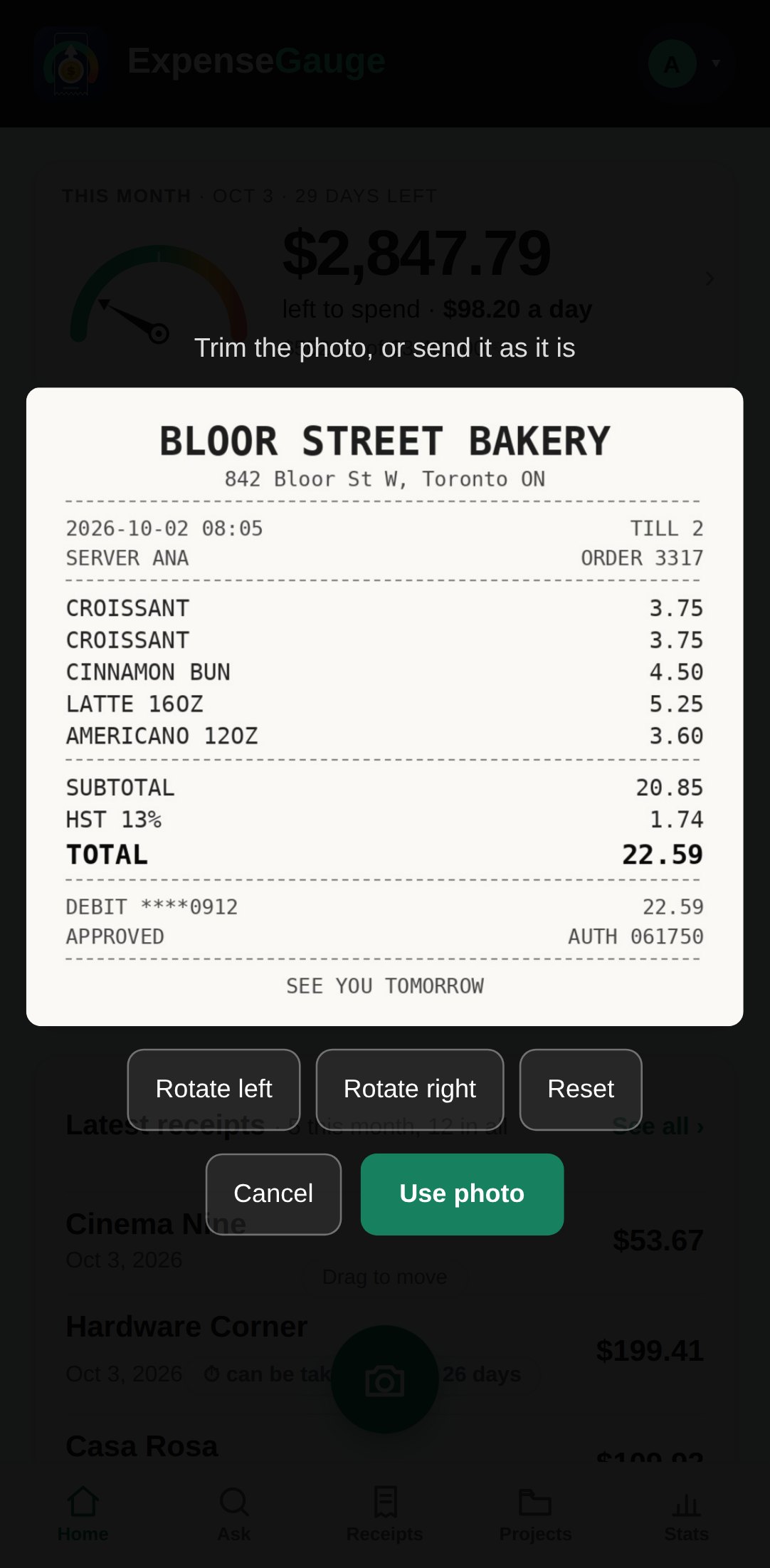
- In the web app: tap the round green camera button above the bottom bar, then take a photo or pick one. If the button covers something you want to read, drag it with your finger to where you want it; it stays there. You can pick several photos or PDFs at once; each is filed on its own.
- In Telegram: send the bot a photo or the PDF.
The receipt is read automatically - shop, date, total and every line - and saved to your account. If something on it needs you, the card says so there and then. Both places share the same data.
More about this: Receipt scanner that reads every line, not just the total
Getting started